01
How to use Wi-Fi for one Mac app and Ethernet for another
Assign a network interface to each Mac app with RouteBar. Configure rules, choose fallback behavior and verify new connections in the connection log.
You may not need extra software for this setup. Connect both networks and test the NAS and internet first. If both already work as intended, keep the system configuration. Use a destination rule when you need explicit control over a NAS connection’s interface.
· RouteBar
In this example, Ethernet reaches the NAS through a local switch or LAN, while Wi-Fi reaches an internet router. The example NAS address is 192.168.50.10; replace it with your own address. A direct cable to a NAS requires compatible addressing according to its documentation. Selecting an interface does not create a missing network path.
With both networks connected, open the NAS service by IP and access the internet. If both work and you have no special app requirement, no routing rule is necessary. Overlapping subnets on the two networks can make the intended path ambiguous. Review the address plan first; service order does not resolve every subnet conflict.
Add an allow rule in RouteBar with the NAS’s individual IP as its destination. Select the Ethernet interface that can reach it and the protocol used by the service: TCP, or TCP and UDP as appropriate. Restrict the app if needed. Avoid matching every private address just to reach one NAS. Disable system-route fallback if the NAS connection must stay on Ethernet.
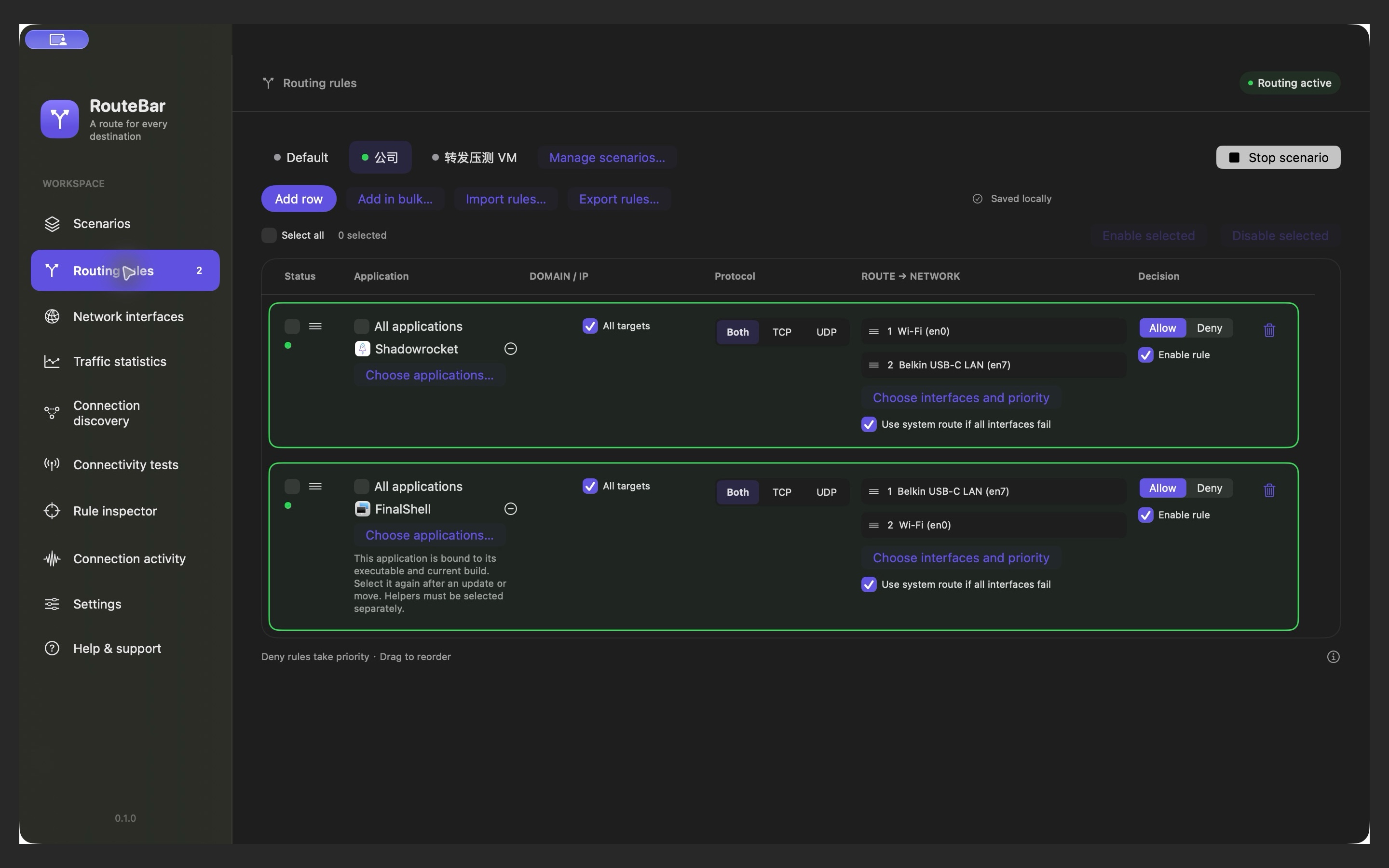
Start or restart the scene. When no file write will be interrupted, reconnect the NAS service and start a new transfer. Check its destination IP, matched rule and Ethernet interface in the log. Make a fresh browser request to confirm internet access still works. A working web page alone says nothing about the NAS transfer’s interface.
If the IP works but the NAS name does not, investigate DNS and local discovery. A hostname rule cannot repair every split-DNS setup. RouteBar does not handle ICMP, so ping is not proof that an app’s TCP or UDP routing rule works. Validate the actual file service connection instead.
01
Assign a network interface to each Mac app with RouteBar. Configure rules, choose fallback behavior and verify new connections in the connection log.
03
Verify a Mac app’s network interface with RouteBar connection discovery and logs. Understand the limits of public IP checks and simulated rule tests.
04
Learn how to prefer Ethernet on a Mac while keeping Wi-Fi enabled, and when to use RouteBar to choose an interface for specific applications.
05
Configure approved office Ethernet and phone-hotspot connections on a Mac. Check app rules, internal DNS, fallback behavior and enterprise security limits.
06
Troubleshoot RouteBar rules that appear not to work: running scenes, fresh connections, helper processes, protocols, fallback, DNS and VPN visibility.
Prefer Wi-Fi on a Mac while keeping wired access to a NAS or local network. Understand service order, application rules and connection checks.