02
Use Ethernet for a NAS and Wi-Fi for internet on a Mac
Set up and troubleshoot a Mac connected to a NAS over Ethernet while using Wi-Fi for internet. Check IP rules, DNS and the actual network interface.
Connecting Wi-Fi and Ethernet at the same time does not automatically split traffic by app. Use separate rules when one app needs Ethernet and another needs Wi-Fi. If you only want the whole Mac to prefer Ethernet, start with the macOS network service order instead.
· RouteBar
Check that Wi-Fi and Ethernet can each reach the services they need. Note their actual names in RouteBar’s network interface view; do not assume en0 or en1 identifies the same adapter on every Mac. Interfaces sharing one broadband connection still share its upstream capacity. This setup is not bandwidth bonding.
Create a scene for the two networks. Add an allow rule, turn off the all-apps selection, and choose your download app. Keep all destinations, select TCP and UDP, and choose only Ethernet. Add a second allow rule for the other app, choosing Wi-Fi instead. App, destination and protocol conditions must all match. Start with these two simple rules before adding more restrictions.
For an app that must use one interface, keep only that interface and disable the option to use the system route when all interfaces fail. If alternative networks are acceptable, add and order backup interfaces. These rules cover matching connections delivered to RouteBar; unmatched traffic may use the system route. This is not a system-wide kill switch.
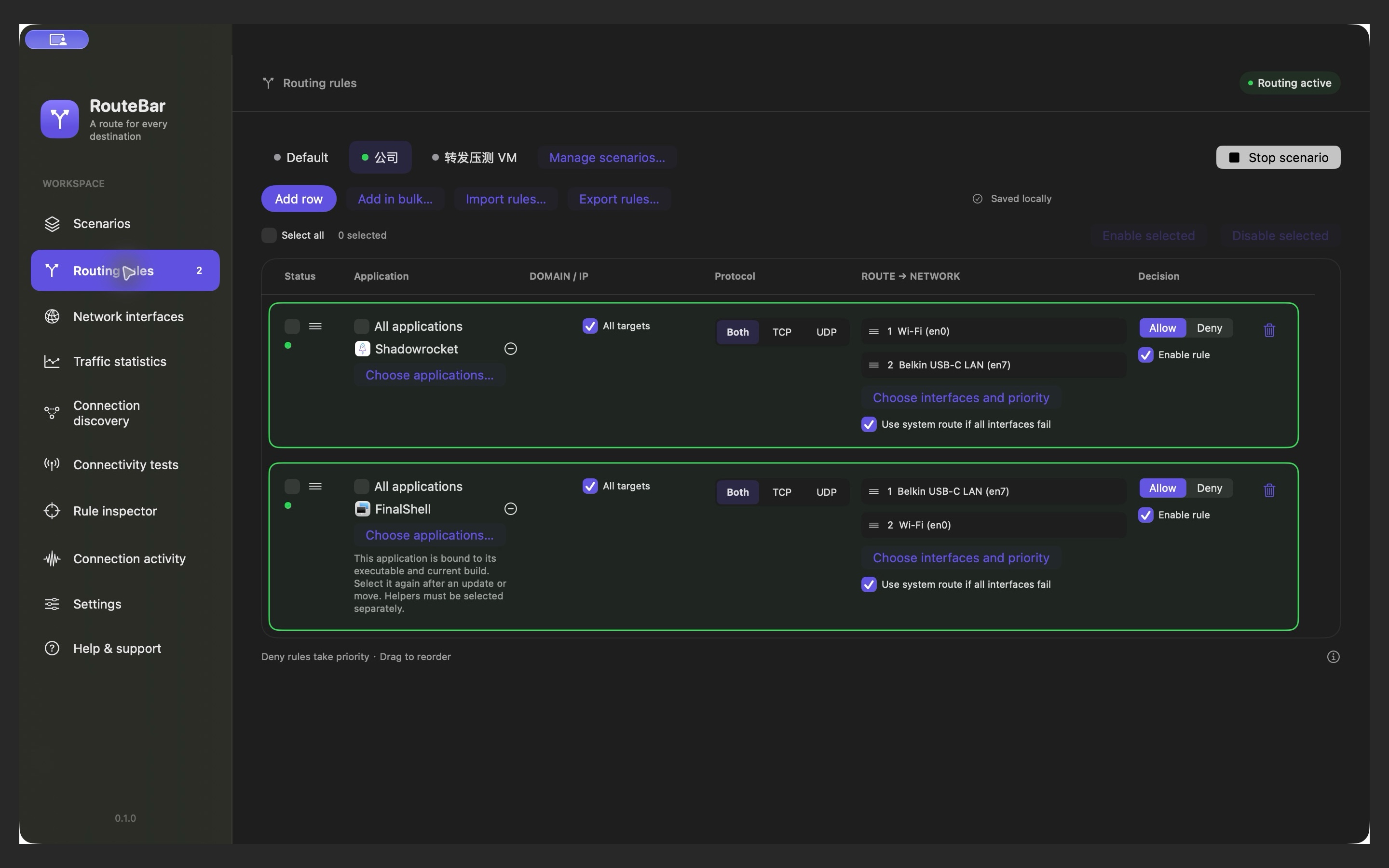
Resolve validation errors, let the configuration save, and start the scene. Restart the download and create a fresh request in the other app. Check the app, destination, matched rule and actual interface in the connection log. After ordinary rule edits, restart the scene. Existing connections do not migrate just because a rule changed.
Use connection discovery to identify the process that actually connects. It may be a helper or a proxy core rather than the app you selected. A browser using a local proxy may connect to that proxy instead of the website directly. Shared tunnels cannot reliably be split by their original inner apps; verify a direct connection first.
02
Set up and troubleshoot a Mac connected to a NAS over Ethernet while using Wi-Fi for internet. Check IP rules, DNS and the actual network interface.
03
Verify a Mac app’s network interface with RouteBar connection discovery and logs. Understand the limits of public IP checks and simulated rule tests.
04
Learn how to prefer Ethernet on a Mac while keeping Wi-Fi enabled, and when to use RouteBar to choose an interface for specific applications.
05
Configure approved office Ethernet and phone-hotspot connections on a Mac. Check app rules, internal DNS, fallback behavior and enterprise security limits.
06
Troubleshoot RouteBar rules that appear not to work: running scenes, fresh connections, helper processes, protocols, fallback, DNS and VPN visibility.
Prefer Wi-Fi on a Mac while keeping wired access to a NAS or local network. Understand service order, application rules and connection checks.